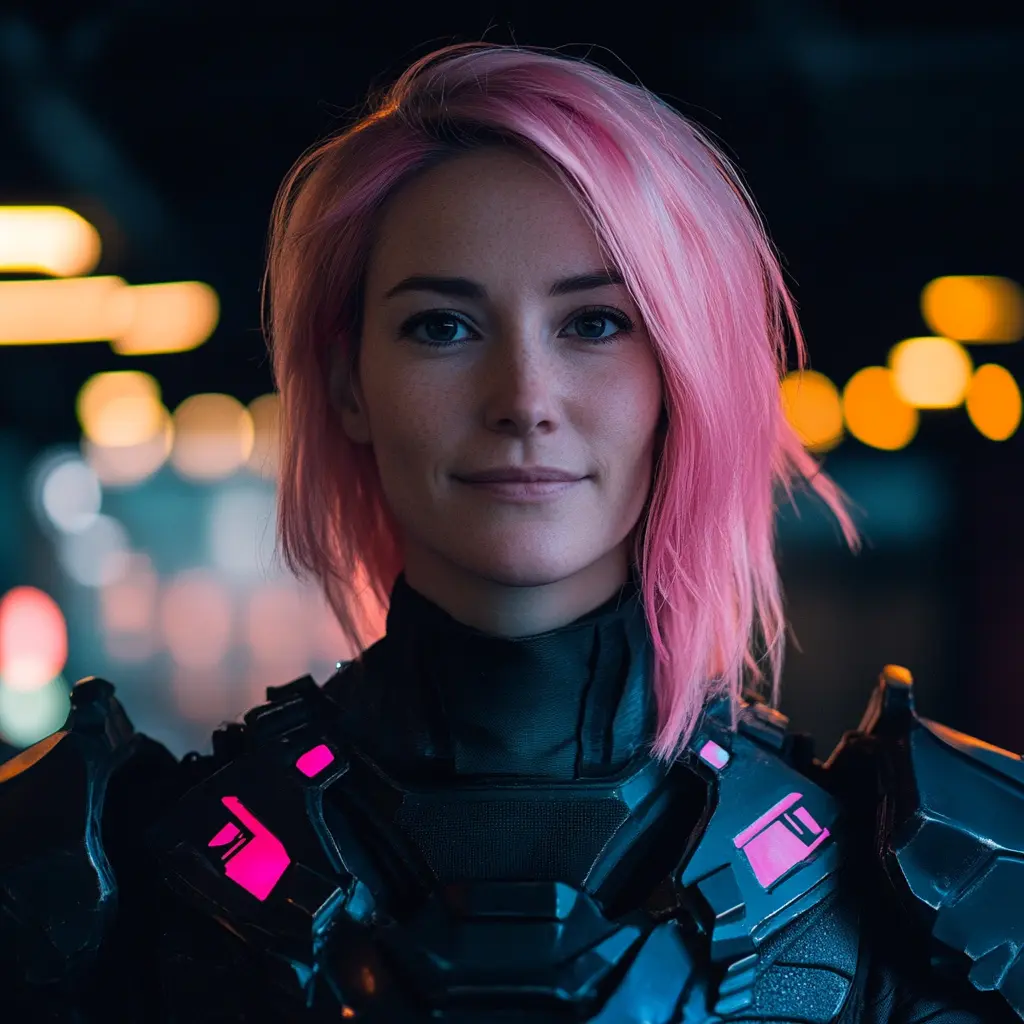
When you are improving a photo, the frustrating part is rarely the whole image. It is one specific area. Modifying the whole image can make pictures look unrealistic and unappealing. That's where image masking enters the game.
What is image masking? It is a special post-processing technique that allows photographers to select a particular area within the image and limit further modifications to this selected area. Nowadays, artificial intelligence (AI) makes it accessible to photographers of all skill levels.
In this guide, we explain what AI photo masking is, how it works, and why it is worth mastering even if you are new to selective edits.
What is Masking in Photo Editing?
As we said, a mask decides where an effect shows up and where it stays hidden. Traditionally, it meant doing careful manual work. You would paint the area for editing yourself, zoom in, clean up edges, and hope you didn't miss stray hairs or complex shapes. This complexity made masking editing seem slow and overwhelming, especially for inexperienced photographers.
Artificial intelligence has redefined perspective. Instead of starting from zero, the software detects the subject or key objects and gives you a usable selection in seconds. Of course, the algorithms cannot substitute for a real human talent, and most pictures will require manual refinements. But it still will be easier than drawing everything by hand.
The AI-based software helps you apply adjustments only where they make sense. It can be lighting a subject, changing color in the sky, sharpening a texture, or preparing a clean cutout.
How AI Masking Works in Luminar Neo
Luminar Neo is the beginner-friendly AI-based photo editor that particularly includes automatic masking. It is one of the best photo editing techniques for the slowest parts of post-processing, like finding clear edges and seamless blending.
What makes masking in Luminar Neo especially approachable is that there is no specific mode for it. Every adjustment you perform with this software is selective. You adjust a tool first, then open its Masking tab to decide where that adjustment should apply. There are multiple mask types you can use for this:
- Brush — paint in/out manually for full control
- Linear Gradient — smooth transitions for skies and foregrounds
- Radial Mask — spotlight a subject with a soft circular falloff
- Mask AI — smart automatic selection of common elements
Mask AI can analyze your image and automatically detect common elements. For instance, the algorithms recognize the sky, people, buildings, water, foliage, and ground. Apply an adjustment only where it belongs, then refine edges with a brush if needed. It is especially handy when the outline is messy. Use the tool to target hair against a bright sky, leaves around shoulders, or detailed objects.
Common Mistakes and Quick Fixes for Them
AI masking is fast, but it is only effective when combined with manual controls. If the edit feels obvious, the picture will lose its realism and appeal. In this section, we examine the most common reasons for unrealistic edits due to selective masking and learn how to balance them.
Halos
There are cases where the mask is applied correctly but still looks too harsh: the subject appears outlined because the transition between the adjusted and unadjusted areas is too abrupt. Fix it by softening the mask edge (feather/softness). In Luminar Neo, you can also control the mask's intensity.
Overselection
AI can grab nearby objects with similar colors or textures. It can lead to hair blending into trees or a jacket merging with a dark wall. Trying to cover up these drawbacks with another layer of heavy adjustments will only make things worse. Instead, refine the mask with a smaller brush and subtract the extra areas first. Keep zooming in and out to ensure the edits look believable at the normal viewing size.
Masking by Default
Not every tool needs a mask, and not every photo needs selective edits. Start by deciding why you need masks first and foremost. Do you want to brighten the subject, calm the sky, or add detail to texture? If you don't know the answer to this question, then masks will only make your post-processing workflow more complex without any noticeable improvements.
Is Masking Worth It or Not? A Quick Checklist
Below, we provide common photo editing scenarios and explain when masking could save your shots and when you should avoid it:
| Situation | Worth it | Overkill |
|---|---|---|
| Portraits with messy hair or foliage around the subject | You need to brighten the face or refine the skin without touching the whole scene | The photo only needs a small global exposure tweak |
| Landscape shots with a bright sky and darker foreground | You want to deepen the sky or lift the foreground separately | Light is already balanced and you're only doing subtle color polish |
| Product shots for eCommerce | You need a clean cutout or to adjust the backdrop without changing the item | The backdrop is already clean and uniform |
| Architecture or interiors with windows | You want to recover window highlights without darkening the whole room | The room exposure is fine and only needs minor global contrast |
Conclusion
AI photo masking allows photographers to easily make precise adjustments to specific areas of a picture. Mastering this technique streamlines post-processing and elevates the overall quality of your photographs, regardless of your skill level.
Related AI Tools:

Imagable
Imagable is an AI-based photo editor that enables users to enhance and modify images with advanced AI technology. It supports context-aware editing,...

FaceSwap AI
FreeFaceSwap AI is a free online platform that enables users to swap faces in photos quickly and realistically using advanced AI technology. It supports...

AI Omnigen
FreemiumAI Omnigen enables users to generate various AI-powered designs including images and videos, offering tools for image editing, colorizing black and white...

Best Face Swap
FreemiumBest Face Swap is an advanced AI-powered tool that allows users to create premium-quality, realistic face swaps in photos and videos with just three...

AI Face Swap Video
FreemiumAI Face Swap Video is a cutting-edge tool that allows users to seamlessly swap faces in videos using advanced artificial intelligence technology. This...

Picsman
FreemiumPicsman is an all-in-one AI photo editing toolkit that allows users to easily create stunning images with advanced editing features. It is designed for...